Values:
00: IAS_SUCCESS
01: IAS_INTERNAL_ERROR
02: IAS_ACCESS_DENIED
03: IAS_MALFORMED_REQUEST
04: IAS_GLOBAL_CATALOG_UNAVAILABLE
05: IAS_DOMAIN_UNAVAILABLE
06: IAS_SERVER_UNAVAILABLE
07: IAS_NO_SUCH_DOMAIN
08: IAS_NO_SUCH_USER
09: The request was discarded by a third-party extension DLL file.
10: A third-party extension DLL has failed and cannot perform its function.
16: IAS_AUTH_FAILURE
17: IAS_CHANGE_PASSWORD_FAILURE
18: IAS_UNSUPPORTED_AUTH_TYPE
19: No reversibly encrypted password is stored for the user account
20: Lan Manager Authentication is not enabled.
21: An IAS extension dynamic link library (DLL) that is installed on the NPS server rejected the connection request.
22: The client could not be authenticated because the EAP type cannot be processed by the server.
23: Unexpected error. Possible error in server or client configuration.
32: IAS_LOCAL_USERS_ONLY
33: IAS_PASSWORD_MUST_CHANGE
34: IAS_ACCOUNT_DISABLED
35: IAS_ACCOUNT_EXPIRED
36: IAS_ACCOUNT_LOCKED_OUT
37: IAS_INVALID_LOGON_HOURS
38: IAS_ACCOUNT_RESTRICTION
48: IAS_NO_POLICY_MATCH
49: Did not match connection request policy
64: IAS_DIALIN_LOCKED_OUT
65: IAS_DIALIN_DISABLED
66: IAS_INVALID_AUTH_TYPE
67: IAS_INVALID_CALLING_STATION
68: IAS_INVALID_DIALIN_HOURS
69: IAS_INVALID_CALLED_STATION
70: IAS_INVALID_PORT_TYPE
71: IAS_INVALID_RESTRICTION
72:
The user cannot change his or her password because the change password
option is not enabled for the matching remote access policy
73: The Enhanced Key Usage (EKU) extensions, section of the user or computer certificate are not valid or are missing.
80: IAS_NO_RECORD
96: IAS_SESSION_TIMEOUT
97: IAS_UNEXPECTED_REQUEST
112: The remote RADIUS server did not process the authentication request.
113:
The local NPS proxy attempted to forward a connection request to a
member of a remote RADIUS server group that does not exist.
115: The local NPS proxy did not forward a RADIUS message because it is not an accounting request or a connection request.
116:
The local NPS proxy server cannot forward the connection request to the
remote RADIUS server because either the proxy cannot open a Windows
socket over which to send the connection request, or the proxy server
attempted to send the connection request but received Windows sockets
errors that prevented successful completion of the send operation.
117: The remote RADIUS (Remote Authentication Dial-In User Service) server did not respond.
118:
The local NPS proxy server received a RADIUS message that is malformed
from a remote RADIUS server, and the message is unreadable.
256: The
certificate provided by the user or computer as proof of their identity
is a revoked certificate. Because of this, the user or computer was not
authenticated, and NPS rejected the connection request.
257: Due to a
missing dynamic link library (DLL) or exported function, NPS cannot
access the certificate revocation list to verify whether the user or
client computer certificate is valid or is revoked.
258: The revocation function was unable to check revocation for the certificate.
259:
The certification authority that manages the certificate revocation
list is not available. NPS cannot verify whether the certificate is
valid or is revoked. Because of this, authentication failed.
260: The message supplied for verification has been altered.
261:
NPS cannot contact Active Directory Domain Services (AD DS) or the
local user accounts database to perform authentication and
authorization. The connection request is denied for this reason.
262: The supplied message is incomplete. The signature was not verified.
263: NPS did not receive complete credentials from the user or computer. The connection request is denied for this reason.
264:
The Security Support Provider Interface (SSPI) called by EAP reports
that the system clocks on the NPS server and the access client are not
synchronized.
265: The certificate that the user or client computer
provided to NPS as proof of identity chains to an enterprise root
certification authority that is not trusted by the NPS server.
266: The message received was unexpected or badly formatted.
267:
The certificate provided by the connecting user or computer is not
valid because it is not configured with the Client Authentication
purpose in Application Policies or Enhanced Key Usage (EKU) extensions.
NPS rejected the connection request for this reason.
268: The
certificate provided by the connecting user or computer is expired. NPS
rejected the connection request for this reason.
269: The Security
Support Provider Interface (SSPI) called by EAP reports that the NPS
server and the access client cannot communicate because they do not
possess a common algorithm.
270: Based on the matching NPS network
policy, the user is required to log on with a smart card, but they have
attempted to log on by using other credentials. NPS rejected the
connection request for this reason.
271: The connection request was
not processed because the NPS server was in the process of shutting down
or restarting when it received the request.
272: The certificate
that the user or client computer provided to NPS as proof of identity
maps to multiple user or computer accounts rather than one account. NPS
rejected the connection request for this reason.
273: Authentication
failed. NPS called Windows Trust Verification Services, and the trust
provider is not recognized on this computer. A trust provider is a
software module that implements the algorithm for application-specific
policies regarding trust.
274: Authentication failed. NPS called
Windows Trust Verification Services, and the trust provider does not
support the specified action. Each trust provider provides its own
unique set of action identifiers. For information about the action
identifiers supported by a trust provider, see the documentation for
that trust provider.
275: Authentication failed. NPS called Windows
Trust Verification Services, and the trust provider does not support the
specified form. A trust provider is a software module that implements
the algorithm for application-specific policies regarding trust. Trust
providers support subject forms that describe where the trust
information is located and what trust actions to take regarding the
subject.
276: Authentication failed. NPS called Windows Trust
Verification Services, but the binary file that calls EAP cannot be
verified and is not trusted.
277: Authentication failed. NPS called
Windows Trust Verification Services, but the binary file that calls EAP
is not signed, or the signer certificate cannot be found.
278: Authentication failed. The certificate that was provided by the connecting user or computer is expired.
279:
Authentication failed. The certificate is not valid because the
validity periods of certificates in the chain do not match. For example,
the following End Certificate and Issuer Certificate validity periods
do not match: End Certificate validity period: 2007-2010; Issuer
Certificate validity period: 2006-2008.
280: Authentication failed. The certificate is not valid and was not issued by a valid certification authority (CA).
281:
Authentication failed. The path length constraint in the certification
chain has been exceeded. This constraint restricts the maximum number of
CA certificates that can follow this certificate in the certificate
chain.
282: Authentication failed. The certificate contains a critical extension that is unrecognized by NPS.
283:
Authentication failed. The certificate does not contain the Client
Authentication purpose in Application Policies extensions, and cannot be
used for authentication.
284: Authentication failed. The certificate
is not valid because the certificate issuer and the parent of the
certificate in the certificate chain are required to match but do not
match.
285: Authentication failed. NPS cannot locate the certificate,
or the certificate is incorrectly formed and is missing important
information.
286: Authentication failed. The certificate provided by
the connecting user or computer is issued by a certification authority
(CA) that is not trusted by the NPS server.
287: Authentication
failed. The certificate provided by the connecting user or computer does
not chain to an enterprise root CA that NPS trusts.
288: Authentication failed due to an unspecified trust failure.
289: Authentication failed. The certificate provided by the connecting user or computer is revoked and is not valid.
290:
Authentication failed. A test or trial certificate is in use, however
the test root CA is not trusted, according to local or domain policy
settings.
291: Authentication failed because NPS cannot locate and
access the certificate revocation list to verify whether the certificate
has or has not been revoked. This issue can occur if the revocation
server is not available or if the certificate revocation list cannot be
located in the revocation server database.
292: Authentication
failed. The value of the User-Name attribute in the connection request
does not match the value of the common name (CN) property in the
certificate.
293: Authentication failed. The certificate provided by
the connecting user or computer is not valid because it is not
configured with the Client Authentication purpose in Application
Policies or Enhanced Key Usage (EKU) extensions. NPS rejected the
connection request for this reason.
294: Authentication failed
because the certificate was explicitly marked as untrusted by the
Administrator. Certificates are designated as untrusted when they are
imported into the Untrusted Certificates folder in the certificate store
for the Current User or Local Computer in the Certificates Microsoft
Management Console (MMC) snap-in.
295: Authentication failed. The
certificate provided by the connecting user or computer is issued by a
CA that is not trusted by the NPS server.
296: Authentication failed.
The certificate provided by the connecting user or computer is not
valid because it is not configured with the Client Authentication
purpose in Application Policies or Enhanced Key Usage (EKU) extensions.
NPS rejected the connection request for this reason.
297:
Authentication failed. The certificate provided by the connecting user
or computer is not valid because it does not have a valid name.
298:
Authentication failed. Either the certificate does not contain a valid
user principal name (UPN) or the value of the User-Name attribute in the
connection request does not match the certificate.
299:
Authentication failed. The sequence of information provided by internal
components or protocols during message verification is incorrect.
300:
Authentication failed. The certificate is malformed and Extensible
Authentication Protocl (EAP) cannot locate credential information in the
certificate.
301: NPS terminated the authentication process. NPS
received a cryptobinding type length value (TLV) from the access client
that is not valid. This issue occurs when an attempt to breach your
network security has occurred and a man-in-the-middle (MITM) attack is
in progress. During MITM attacks on your network, attackers use
unauthorized computers to intercept traffic between your legitimate
hosts while posing as one of the legitimate hosts. The attacker’s
computer attempts to gain data from your other network resources. This
enables the attacker to use the unauthorized computer to intercept,
decrypt, and access all network traffic that would otherwise go to one
of your legitimate network resources.
302: NPS terminated the
authentication process. NPS did not receive a required cryptobinding
type length value (TLV) from the access client during the authentication
process.
Tuesday, 18 May 2021
Windows NPS error codes

Wednesday, 2 December 2020
VPN IPSEC Replay errors
Sometimes you see erros like this on a Cisco router.
%IOSXE-3-PLATFORM: R0/0: cpp_cp: QFP:0.0 Thread:000 TS:0002185922034562192 %IPSEC-3-REPLAY_ERROR: IPSec SA receives anti-replay error, DP Handle 13, src_addr <A.A.A.A>, dest_addr <B.B.B.B>, SPI 0x3caaaeb7
If you know that these packets are legitimate packets from your VPN endpoints, it means that some mechanism changes the order of the packets and these causes packet drops on the receiving end.
In order to overcome this one can apply the following command in order to increase the IPSec receive window.
crypto ipsec security-association replay window-size 1024
Cisco Reference:
Friday, 7 August 2020
Expressway Regex
Credits for this article goes to https://www.collabarchitects.co/
Test your Regex at https://regex101.com/
Example 1: Match a specific URI
.*@example.webex.com
We often use a regex like the one above to route calls to a specific URI. In this case, we're matching anything with the domain example.webex.com. Here's how we did it:
. matches any single character
* matches the character proceeding it zero or more times
Thus .* would match any single character zero or more times
Add the domain @example.webex.com as a qualifier to only match the characters proceeding that specific domain.
Make sense? Let's use an example:
jonathan@example.webex.com is a MATCH
jonathan123@example.webex.com is a MATCH
jonathan@acme.webex.com is NOT A MATCH, we are only matching URIs with the specific domain example.webex.com
Pretty simple, right?
Example 2: Match all URIs EXCEPT a specific URI
(?!.*@example\.com*$).*
This regex is often used to match all domains that are not the local domain (i.e. external domains). In the above example, we're matching everything except example.com. Here's how we did it:
( ) nests characters for grouping
.* matches all characters (remember our previous example?)
Thus, the regex reads: check the expression in the ( ) and otherwise match everything .*
Do you understand thus far? If not, go back to our first example. Now comes the interesting part:
? matches zero or one occurrence of a pattern; thus ba?b matches bb and bab, but not baab
?! is an advanced regex called a lookaround. More importantly, it's a negative lookahead. Negative lookaheads require that a specific pattern NOT be met in the expression to the right. In this case, we require example.com to not be in the expression for a match.
\ is an escape for a special character. In our example, we want . in .com to be matched and thus need to use the \
* matches the character proceeding it zero or more times
$ matches the character or null string at the end of an input string; thus 123$ matches 0123, but not 1234
Thus, the regex ?!.*@example\.com*$ is read: exclude any expression matching .*@example.com
Let's put it all together: (?!.*@example\.com*$).* should be read: exclude any URI with the domain example.com but match all other URIs
Make sense? Let's use an example:
jonathan@example.com is NOT A MATCH
jonathan123@example.com is NOT A MATCH
jonathan@acme.com is a MATCH
That one was a bit tougher, lookarounds are not for the faint of heart. Grab a cup of coffee, let's start looking at using regex replacement strings.
Example 2: Use Replace
The Replace function in Expressway transforms is exceedingly useful when you need to modify an inbound URI or set of digits. For example, we often want Expressway registered endpoints to dial a 5 digit internal numbers and route to CUCM. To properly route, we need to take the 5 digit sting and convert to a URI. Here's how we did it:

Match Pattern String: \d{5}
Behavior: Replace
Replacement String: \1@example.com
\d matches any single digit. The {5} modifies the meaning to match any set of 5 digits. Thus, 12345 matches but 123456 does not.
\1 matches the same text as was most recently matched. In our case, it matches the same 5 digits that were matched in the first string.
Thus, the regex: \d{5} replace \1@example.com should be read; match any five digits and add example.com to the domain.
Make sense? Let's use an example:
55555 is a MATCH which outputs 55555@example.com
666666 is NOT A MATCH
jonathan@example.com is NOT A MATCH
How about another example? Here we want to match any 10 digit number dialed, excluding a number starting with 0, and add a domain to convert a digit string into a URI. This would allow a video endpoint to dial a 10-digit PSTN number.
Match Pattern String: ([^0]*)
Behavior: Replace
Replacement String: \10@example.com
Let's start with the matching pattern string: ([^0]*)
( ) nests characters for grouping
[ ] match characters or a range of characters separated by a hyphen. Thus, [1-9] matches 1,2,3 but not 0
^ matches the character or null string at the beginning of an input string. Thus, ^123 matches 1234 but not 01234
Thus, the regex ([^0]*) is read: exclude any expression starting with 0 but match everything else.
Now, time for the replacement string: \10@example.com
\ when used in a replacements string, matches the number of characters following the backslash
Let's put it all together: ([^0]*) Replace \10@example.com should be read: match any expression not starting with 0 and create a URI with the first 10 digits and example.com as the domain.
Make sense? Let's use an example:
8162223333 is a MATCH which outputs 8162223333@example.com
081622333 is NOT A MATCH
jonathan@example.com is NOT A MATCH
Wednesday, 17 June 2020
Firepower check Security Intelligence feed contents
You can view the list of Security Intelligence IP addresses from the CLI of the Defense Center. You'll want to issue the following commands after logging in:
1. sudo su
2. cd /var/sf/iprep_download
In this directory, there is a file called rep_dd.yaml. You can view this text file to find the UUID associated with each category, such as "attackers".
There should be a file in the /var/sf/iprep_download directory named for that UUID, for example 5a0b6d6b-e2c3-436f-b4a1-48248b330a26. You can view this file using the "less" command in order to see the IP addresses that are currently included for that particular category.
Friday, 10 April 2020
Cisco WLC Administrator Radius authentication
- In order to set read-write privileges for the user, set the Service-Type Attribute to Administrative.
- In order to set read-only privileges for the user, set the Service-Type Attribute to NAS-Prompt.
- For Lobby Ambassador you have to return IETF RADIUS Service-Type attribute set to Callback Administrative.
http://www.cisco.com/en/US/tech/tk722/tk809/technologies_configuration_example09186a0080782507.shtml.
Thursday, 28 November 2019
IKEv1 VPN messages
All Credits for this go to Jack Rhysider and his excellent work at https://www.tunnelsup.com/ and https://darknetdiaries.com/
ISAKMP (IKE Phase 1) Negotiations States
The MM_WAIT_MSG state can be an excellent clue into why a tunnel is not forming. If your firewall is hanging at a specific state review this graph below to find where along the path the VPN is failing.ASA ISAKMP STATES
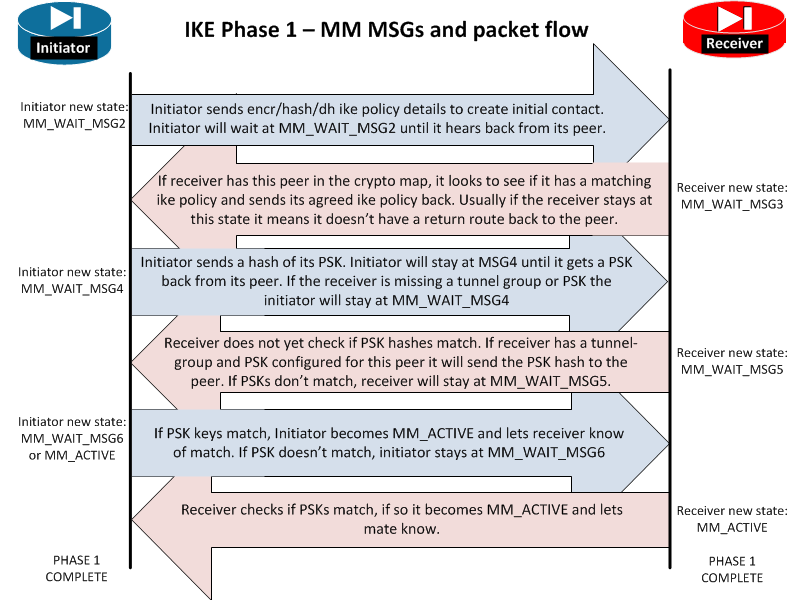
- MM_WAIT_MSG2 Initiator Initial DH public key sent to responder. Awaiting initial contact reply from other side. Initiator sends encr/hash/dh ike policy details to create initial contact. Initiator will wait at MM_WAIT_MSG2 until it hears back from its peer. If stuck here it usually means the other end is not responding. This could be due to no route to the far end or the far end does not have ISAKMP enabled on the outside or the far end is down.
- MM_WAIT_MSG3 Receiver Receiver is sending back its IKE policy to the initiator. Initiator sends encr/hash/dh ike policy details to create initial contact. Initiator will wait at MM_WAIT_MSG2 until it hears back from its peer. Hang ups here may also be due to mismatch device vendors, a router with a firewall in the way, or even ASA version mismatches.
- MM_WAIT_MSG4 Initiator Initiator is sending the Pre-Shared-Key hash to its peer. Initiator sends a hash of its PSK. Initiator will stay at MSG4 until it gets a PSK back from its peer. If the receiver is missing a tunnel group or PSK the initiator will stay at MM_WAIT_MSG4
- MM_WAIT_MSG5 Receiver Receiver is sending its PSK hash to its peer. Receiver does not yet check if PSK hashes match. If receiver has a tunnel-group and PSK configured for this peer it will send the PSK hash to the peer. If PSKs don’t match, receiver will stay at MM_WAIT_MSG5. I have also seen the tunnel stop here when NAT-T was on when it needed to be turned off.
- MM_WAIT_MSG6 Initiator Initiator checks if PSK hashes match. If PSK keys match, Initiator becomes MM_ACTIVE and lets receiver know of match. If PSK doesn’t match, initiator stays at MM_WAIT_MSG6. I have also seen the tunnel stop here when NAT-T was on when it needed to be turned off. However, if the state goes to MSG6 then the ISAKMP gets reset that means phase 1 finished but phase 2 failed. Check that IPSEC settings match in phase 2 to get the tunnel to stay at MM_ACTIVE.
- AM_ACTIVE / MM_ACTIVE The ISAKMP negotiations are complete. Phase 1 has successfully completed.
PIX ISAKMP STATES
- MM_NO_STATE
- MM_SA_SETUP
- MM_KEY_EXCH
- MM_KEY_AUTH
- AG_NO_STATE
- AG_INIT_EXCH
- AG_AUTH
- QM_IDLE
What is the difference between MM and AM?
Main mode vs Aggressive mode. Here is a image taken from Cisco’s website to show the difference.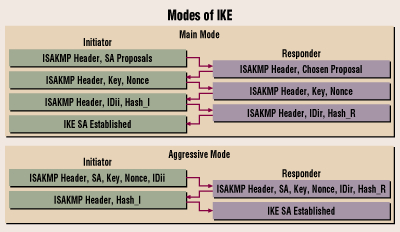
As you can see the Main mode is the same as the flowchart at the top of the page. Aggressive mode only uses 4 steps to establish the tunnel.
Troubleshooting ISAKMP Or Phase 1 VPN connections
When troubleshooting VPNs, a very common problem is phase 1 not establishing correctly. Here’s a quick checksheet to make sure you have the configuration correct.- Verify ISAKMP parameters match exactly.
- Verify pre-shared-keys match exactly.
- Check that each side has a route to the peer address that you are trying to form a tunnel with.
- Verify ISAKMP is enabled on the outside interfaces.
- Is ESP traffic permitted in through the outside interface?
- Is UDP port 500 open on the outside ACL?
- Some situations require that UDP port 4500 is open for the outside.
Tuesday, 12 November 2019
Firepower VPN Filter via Flexconfig
If you don't know what you're doing hire a trained engineer!
VPN filter for Site to site VPN is not supported from GUI in Firepower. see CSCvj86972
You have to create a new policy and attach it to tunnel-group.
Create your VPN configuration and save it.
Assuming that Remote VPN peer IP = 10.10.10.10
Do the following:
1) Under objects create an extended access list to be used as VPN Filter with the name VPN_FILTER, this ACL is your actual VPN filter and will be attached to your VPN tunnel.
2) On the same page under Flexconfig-> Text Object Create a new text object for your tunnel group IP as Single and assign a value of 10.10.10.10 (replace with your peer IP)
3) Under Flexconfig Object create a new object with Deployment: "Everytime" and Type: "Append"

4) Insert a new policy object -> Extended ACL object and choose your created ACL

5) Insert a new policy object -> Text Object and choose your previously created "TUNNEL_GROUP"
6) Copy and paste the following to flex config window
Note: adjust any vpn attributes here except the vpn-filter value
group-policy VPN_FILTER_POL internal
group-policy VPN_FILTER_POL attributes
vpn-idle-timeout 30
vpn-idle-timeout alert-interval 1
vpn-session-timeout none
vpn-session-timeout alert-interval 1
vpn-filter value $VPN_ACL
vpn-tunnel-protocol ikev1 ikev2
tunnel-group $VPN_TUNNEL general-attributes
default-group-policy VPN_FILTER_POL
Your config should look like this

7) Now attached the configured policy to you flex config for the specific device under Devices -> FlexConfig (If you dont have a policy create a new one, assign it to the proper device and insert the FLEX_VPN_FILTER found in user defined policies).
8) Save and deploy!