Friday, 7 August 2020

Expressway Regex

 Credits for this article goes to https://www.collabarchitects.co/

 Test your Regex at https://regex101.com/


Example 1: Match a specific URI


.*@example.webex.com


We often use a regex like the one above to route calls to a specific URI.  In this case, we're matching anything with the domain example.webex.com.  Here's how we did it:


. matches any single character


* matches the character proceeding it zero or more times 


Thus .* would match any single character zero or more times


Add the domain @example.webex.com as a qualifier to only match the characters proceeding that specific domain.


Make sense?  Let's use an example:


jonathan@example.webex.com is a MATCH


jonathan123@example.webex.com is a MATCH


jonathan@acme.webex.com is NOT A MATCH, we are only matching URIs with the specific domain example.webex.com


Pretty simple, right?


Example 2: Match all URIs EXCEPT a specific URI


(?!.*@example\.com*$).*


This regex is often used to match all domains that are not the local domain (i.e. external domains).  In the above example, we're matching everything except example.com.  Here's how we did it:


( ) nests characters for grouping


.* matches all characters (remember our previous example?)


Thus, the regex reads: check the expression in the ( ) and otherwise match everything .* 


Do you understand thus far?  If not, go back to our first example. Now comes the interesting part:


?  matches zero or one occurrence of a pattern; thus ba?b matches bb and bab, but not baab


?! is an advanced regex called a lookaround.  More importantly, it's a negative lookahead.  Negative lookaheads require that a specific pattern NOT be met in the expression to the right.  In this case, we require example.com to not be in the expression for a match.


\ is an escape for a special character.  In our example, we want . in .com to be matched and thus need to use the \ 


* matches the character proceeding it zero or more times


$ matches the character or null string at the end of an input string; thus 123$ matches 0123, but not 1234


Thus, the regex ?!.*@example\.com*$ is read: exclude any expression matching .*@example.com


Let's put it all together: (?!.*@example\.com*$).* should be read: exclude any URI with the domain example.com but match all other URIs


Make sense?  Let's use an example:


jonathan@example.com is NOT A MATCH


jonathan123@example.com is NOT A MATCH


jonathan@acme.com is a MATCH


That one was a bit tougher, lookarounds are not for the faint of heart.  Grab a cup of coffee, let's start looking at using regex replacement strings.

Example 2: Use Replace


The Replace function in Expressway transforms is exceedingly useful when you need to modify an inbound URI or set of digits.  For example, we often want Expressway registered endpoints to dial a 5 digit internal numbers and route to CUCM.  To properly route, we need to take the 5 digit sting and convert to a URI.  Here's how we did it:


Match Pattern String: \d{5}

Behavior: Replace

Replacement String: \1@example.com


\d matches any single digit.  The {5} modifies the meaning to match any set of 5 digits.  Thus, 12345 matches but 123456 does not.


\1 matches the same text as was most recently matched.  In our case, it matches the same 5 digits that were matched in the first string.


Thus, the regex: \d{5} replace \1@example.com should be read; match any five digits and add example.com to the domain.


Make sense?  Let's use an example:


55555 is a MATCH which outputs 55555@example.com


666666 is NOT A MATCH


jonathan@example.com is NOT A MATCH


How about another example?  Here we want to match any 10 digit number dialed, excluding a number starting with 0, and add a domain to convert a digit string into a URI.  This would allow a video endpoint to dial a 10-digit PSTN number.


Match Pattern String: ([^0]*)

Behavior: Replace

Replacement String: \10@example.com


Let's start with the matching pattern string: ([^0]*)


( ) nests characters for grouping


[ ] match characters or a range of characters separated by a hyphen.  Thus, [1-9] matches 1,2,3 but not 0


^ matches the character or null string at the beginning of an input string.  Thus, ^123 matches 1234 but not 01234


Thus, the regex ([^0]*)​ is read: exclude any expression starting with 0 but match everything else.


Now, time for the replacement string: \10@example.com


\ when used in a replacements string, matches the number of characters following the backslash


Let's put it all together: ([^0]*) Replace \10@example.com should be read: match any expression not starting with 0 and create a URI with the first 10 digits and example.com as the domain.


Make sense?  Let's use an example:


8162223333 is a MATCH which outputs 8162223333@example.com


081622333 is NOT A MATCH


jonathan@example.com is NOT A MATCH


Wednesday, 17 June 2020

Firepower check Security Intelligence feed contents

You can view the list of Security Intelligence IP addresses from the CLI of the Defense Center. You'll want to issue the following commands after logging in:

1. sudo su

2. cd /var/sf/iprep_download

In this directory, there is a file called rep_dd.yaml. You can view this text file to find the UUID associated with each category, such as "attackers".

There should be a file in the /var/sf/iprep_download directory named for that UUID, for example 5a0b6d6b-e2c3-436f-b4a1-48248b330a26. You can view this file using the "less" command in order to see the IP addresses that are currently included for that particular category.

Friday, 10 April 2020

Cisco WLC Administrator Radius authentication

In order to authenticate a user via a RADIUS server, for controller       login and management, you must add the user to the RADIUS database with the       IETF RADIUS attributes Service-Type attribute set to the appropriate value       according to the user's privileges.
  • In order to set read-write privileges for the user, set the           Service-Type Attribute to Administrative.
  • In order to set read-only privileges for the user, set the           Service-Type Attribute to           NAS-Prompt.
  • For Lobby Ambassador you have to return IETF RADIUS Service-Type attribute set to Callback       Administrative.
Please find config example:
http://www.cisco.com/en/US/tech/tk722/tk809/technologies_configuration_example09186a0080782507.shtml.

Thursday, 28 November 2019

IKEv1 VPN messages

All Credits for this go to Jack Rhysider and his excellent work at https://www.tunnelsup.com/ and https://darknetdiaries.com/

ISAKMP (IKE Phase 1) Negotiations States

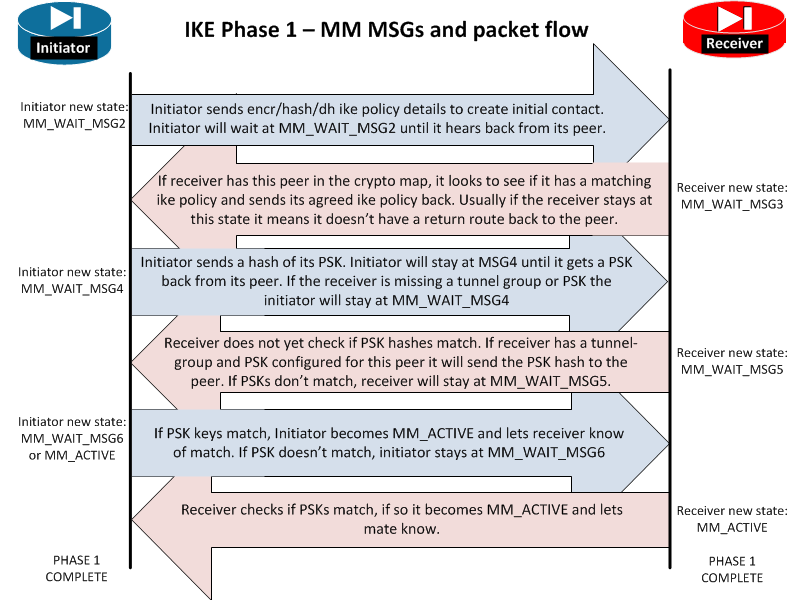
The MM_WAIT_MSG state can be an excellent clue into why a tunnel is not forming. If your firewall is hanging at a specific state review this graph below to find where along the path the VPN is failing.

ASA ISAKMP STATES

IKE Phase Messages - IMG
Graph source: tunnelsup.com
These are the possible ISAKMP negotiation states on an ASA firewall. ISAKMP stands for: The Internet Security Association and Key Management Protocol
  • MM_WAIT_MSG2 Initiator Initial DH public key sent to responder. Awaiting initial contact reply from other side. Initiator sends encr/hash/dh ike policy details to create initial contact. Initiator will wait at MM_WAIT_MSG2 until it hears back from its peer. If stuck here it usually means the other end is not responding. This could be due to no route to the far end or the far end does not have ISAKMP enabled on the outside or the far end is down.
  • MM_WAIT_MSG3 Receiver Receiver is sending back its IKE policy to the initiator. Initiator sends encr/hash/dh ike policy details to create initial contact. Initiator will wait at MM_WAIT_MSG2 until it hears back from its peer. Hang ups here may also be due to mismatch device vendors, a router with a firewall in the way, or even ASA version mismatches.
  • MM_WAIT_MSG4 Initiator Initiator is sending the Pre-Shared-Key hash to its peer. Initiator sends a hash of its PSK. Initiator will stay at MSG4 until it gets a PSK back from its peer. If the receiver is missing a tunnel group or PSK the initiator will stay at MM_WAIT_MSG4
  • MM_WAIT_MSG5 Receiver Receiver is sending its PSK hash to its peer. Receiver does not yet check if PSK hashes match. If receiver has a tunnel-group and PSK configured for this peer it will send the PSK hash to the peer. If PSKs don’t match, receiver will stay at MM_WAIT_MSG5. I have also seen the tunnel stop here when NAT-T was on when it needed to be turned off.
  • MM_WAIT_MSG6 Initiator Initiator checks if PSK hashes match. If PSK keys match, Initiator becomes MM_ACTIVE and lets receiver know of match. If PSK doesn’t match, initiator stays at MM_WAIT_MSG6. I have also seen the tunnel stop here when NAT-T was on when it needed to be turned off. However, if the state goes to MSG6 then the ISAKMP gets reset that means phase 1 finished but phase 2 failed. Check that IPSEC settings match in phase 2 to get the tunnel to stay at MM_ACTIVE.
  • AM_ACTIVE / MM_ACTIVE The ISAKMP negotiations are complete. Phase 1 has successfully completed.

PIX ISAKMP STATES

    • MM_NO_STATE
ISAKMP SA has been created but nothing else has happened yet.
    • MM_SA_SETUP
The peers have agreed on parameters for the ISAKMP SA.
    • MM_KEY_EXCH
The peers have exchanged Diffie-Hellman public keys and have generated a shared secret. The I SAKMP SA remains unauthenticated.
    • MM_KEY_AUTH
The ISAKMP SA has been authenticated. If the router initiated this exchange, this state trans itions immediately to QM_IDLE and a Quick mode exchange begins.
    • AG_NO_STATE
The ISAKMP SA has been created but nothing else has happened yet.
    • AG_INIT_EXCH
The peers have done the first exchange in Aggressive mode but the SA is not authenticated.
    • AG_AUTH
The ISAKMP SA has been authenticated. If the router initiated this exchange, this state transitions immediately to QM_IDLE and a Quick mode exchange begins.
    • QM_IDLE
The ISAKMP negotiations are complete. Phase 1 successfully completed. It remains authenticated with its peer and may be used for subsequent Quick mode exchanges.

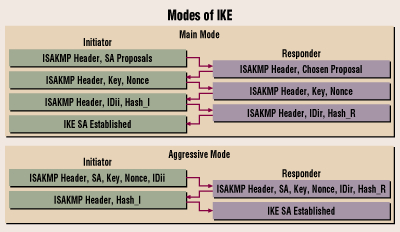
What is the difference between MM and AM?

Main mode vs Aggressive mode. Here is a image taken from Cisco’s website to show the difference.
MM AM - IMG
As you can see the Main mode is the same as the flowchart at the top of the page. Aggressive mode only uses 4 steps to establish the tunnel.

Troubleshooting ISAKMP Or Phase 1 VPN connections

When troubleshooting VPNs, a very common problem is phase 1 not establishing correctly. Here’s a quick checksheet to make sure you have the configuration correct.
  • Verify ISAKMP parameters match exactly.
  • Verify pre-shared-keys match exactly.
  • Check that each side has a route to the peer address that you are trying to form a tunnel with.
  • Verify ISAKMP is enabled on the outside interfaces.
  • Is ESP traffic permitted in through the outside interface?
  • Is UDP port 500 open on the outside ACL?
  • Some situations require that UDP port 4500 is open for the outside.

Tuesday, 12 November 2019

Firepower VPN Filter via Flexconfig


The following information provided as is with not guaranties  that it works and support will not be provided! Test in a lab before deploying in production.

If you don't know what you're doing hire a trained engineer!


VPN filter for Site to site VPN is not supported from GUI in Firepower. see CSCvj86972


You have to create a new policy and attach it to tunnel-group.
Create your VPN configuration and save it.

Assuming that Remote VPN peer IP = 10.10.10.10

Do the following:


1) Under objects create an extended access list to be used as VPN Filter with the name VPN_FILTER, this ACL is your actual VPN filter and will be attached to your VPN tunnel.


2) On the same page under Flexconfig-> Text Object Create a new text object for your tunnel group IP as Single and assign a value of 10.10.10.10 (replace with your peer IP)


3) Under Flexconfig Object create a new object with Deployment: "Everytime" and Type: "Append"


4) Insert a new policy object -> Extended ACL object and choose your created ACL


5) Insert a new policy object -> Text Object and choose your previously created "TUNNEL_GROUP"


6) Copy and paste the following to flex config window
    Note: adjust any vpn attributes here except the vpn-filter value

group-policy VPN_FILTER_POL internal
group-policy VPN_FILTER_POL attributes
 vpn-idle-timeout 30
 vpn-idle-timeout alert-interval 1
 vpn-session-timeout none
 vpn-session-timeout alert-interval 1
 vpn-filter value $VPN_ACL
 vpn-tunnel-protocol ikev1 ikev2

tunnel-group $VPN_TUNNEL general-attributes
 default-group-policy VPN_FILTER_POL

Your config should look like this


7) Now attached the configured policy to you flex config for the specific device under Devices -> FlexConfig (If you dont have a policy create a new one, assign it to the proper device and insert the FLEX_VPN_FILTER found in user defined policies).


8) Save and deploy!


Thursday, 7 November 2019

Change FTD management default gateway

Use the following in expert mode to disable gateway via data interfaces:
vi /etc/sysconfig/network-scripts/ifcfg-internal-route and changed the INTERNAL_ROUTE_ENABLED=1 to INTERNAL_ROUTE_ENABLED=0

Exit Expert mode.  Then issue a configure network ipv4 manual 1.1.1.2 255.255.255.0 1.1.1.1 to reconfigure the management IP.

The show network command now shows the gateway.

Wednesday, 6 November 2019

Catalyst 9300 iPerf Docker app

Follow this guide for iPerf docker install on Catalyst 9300

https://community.cisco.com/t5/networking-blogs/network-performance-monitoring-with-catalyst-9300-application/ba-p/3868481

Note:
Execute the command " iperf.exe – c  <IP address of the server>   -P 10  -w 1000k "
  (  -P refers to the number of parallel TCP streams and –w referes to the TCP window size  )